


cTrader Connectivity Issues in Prop Challenges and How to Fix Them
cTrader is one of the most stable and professional trading platforms available today. That’s one of the main reasons prop traders prefer it during evaluation and funded stages. But even with a solid platform, cTrader connectivity issues can still happen, especially during high-impact sessions or when trading under prop challenge conditions.
For traders attempting a Pipstone Capital challenge, platform stability isn’t just about convenience. A short disconnection can mean missed entries, delayed exits, or unnecessary drawdown pressure. Understanding why cTrader connectivity problems occur and how to fix them quickly can make a real difference in your challenge outcome.
This guide explains the most common cTrader connectivity issues in prop challenges, how to diagnose the real cause, and the exact steps you can take to prevent them going forward.
What cTrader connectivity issues look like during a prop challenge
Not all cTrader connectivity problems look like a full platform outage. In many cases, the connection is only partially broken, which makes it more dangerous for prop traders.
Common signs of cTrader connectivity issues include:
Charts stop updating while the platform remains open
Prices lag behind real market movement
“Disconnected” or “Connecting…” messages appear repeatedly
Orders remain stuck on “Pending”
Failed order execution during volatile moments
Random logouts during an active session
Symbols showing “No prices” despite open markets
In a prop challenge environment, where drawdown rules, risk limits, and execution accuracy matter, these issues can create unnecessary pressure and mistakes.
These risks tend to increase around news releases and session opens, which is why market timing and symbol selection also matter during unstable conditions, as explained in best forex pairs to trade before Announcements.

Why cTrader connectivity issues matter more in prop challenges
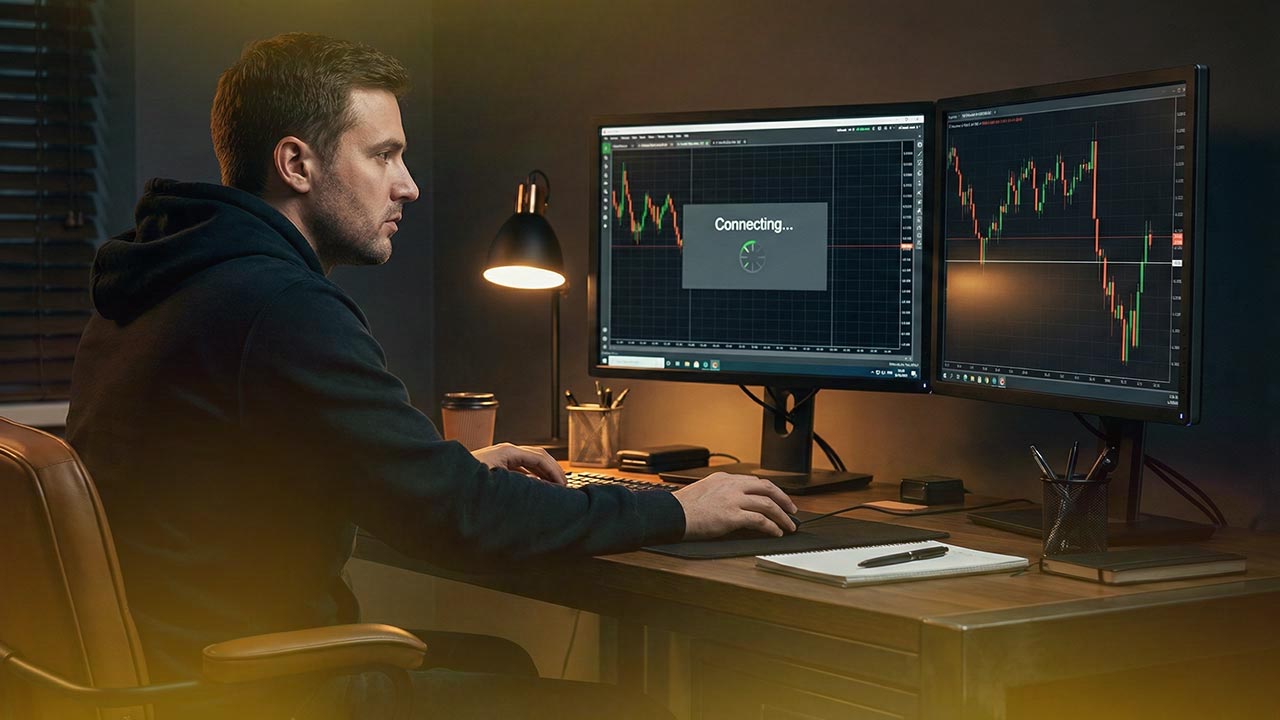
For retail traders, a short disconnection is annoying. For prop traders, it can be costly.
During a Pipstone Capital challenge, traders must:
Follow strict drawdown limits
Execute trades precisely
Manage risk consistently
Avoid emotional decision-making
When cTrader connectivity becomes unstable, traders may panic, over-intervene manually, or miss exits they had planned in advance. This is why understanding and preparing for connectivity problems is part of professional prop trading.
Traders who want to strengthen their platform execution and challenge workflow should also review how to use cTrader for prop challenges, which breaks down platform usage, order handling, and execution best practices in a prop environment.
The three main causes of cTrader connectivity problems
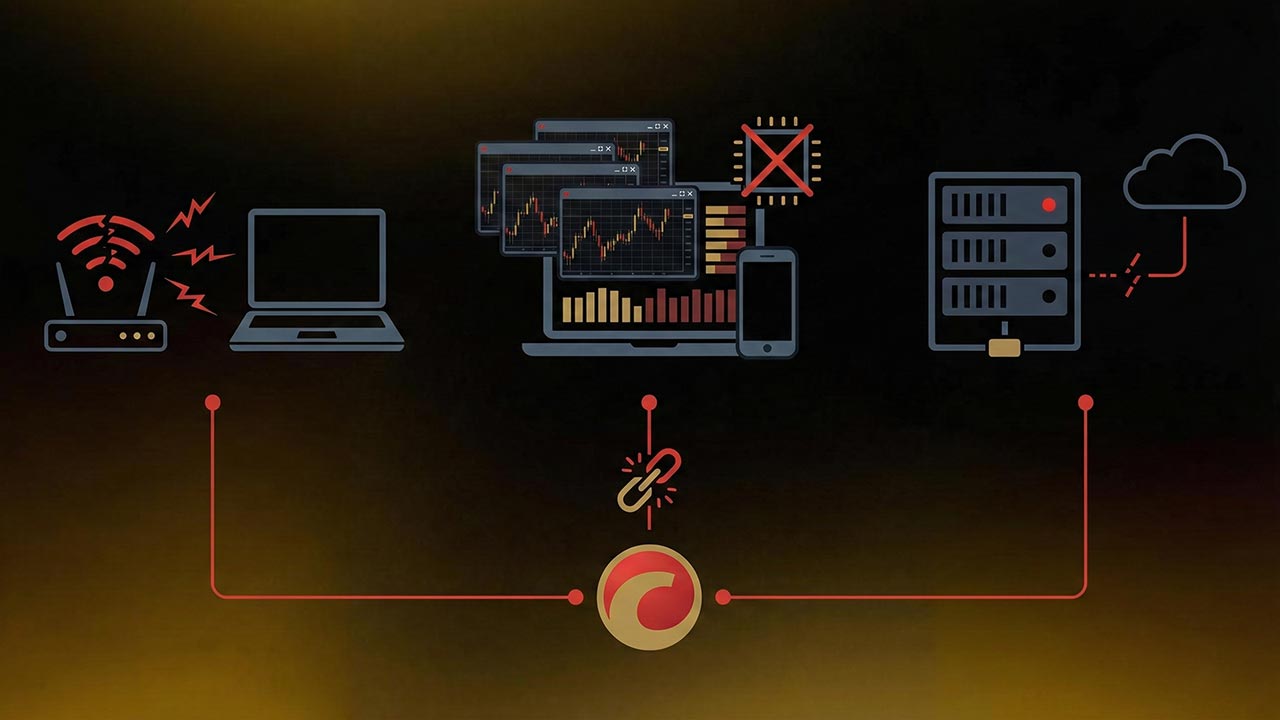
Almost every cTrader connectivity issue falls into one of these three categories:
1. Internet or network instability
This is the most common cause. Even fast internet can be unstable enough to interrupt trading traffic.
2. Platform or device-level issues
Outdated software, overloaded devices, or corrupted cache can cause cTrader to freeze or desync.
If you’re unsure whether cTrader or another platform suits your trading style and challenge conditions, it’s worth comparing execution behavior in cTrader vs MT5 to understand where platform stability differences really come from.
3. Broker or server-side interruptions
Maintenance, price feed disruptions, or server overloads on the broker side.
The key is identifying which category you’re dealing with before trying random fixes.
Step 1: Determine whether the cTrader connectivity issue is local or server-side
Before changing any settings, confirm where the problem is coming from.
Quick checks you should always do first
Open several websites (not just Google) to confirm internet stability
Switch from Wi-Fi to a mobile hotspot
Try cTrader Web if you’re using the desktop app
Check your email or broker dashboard for maintenance notices
Ask other traders in the Pipstone Capital community if they’re experiencing issues
If multiple traders report the same issue at the same time, the cTrader connectivity problem is likely server-side.
Fix 1: Stabilize your internet connection (most common solution)
Internet instability causes more cTrader connectivity issues than any other factor.
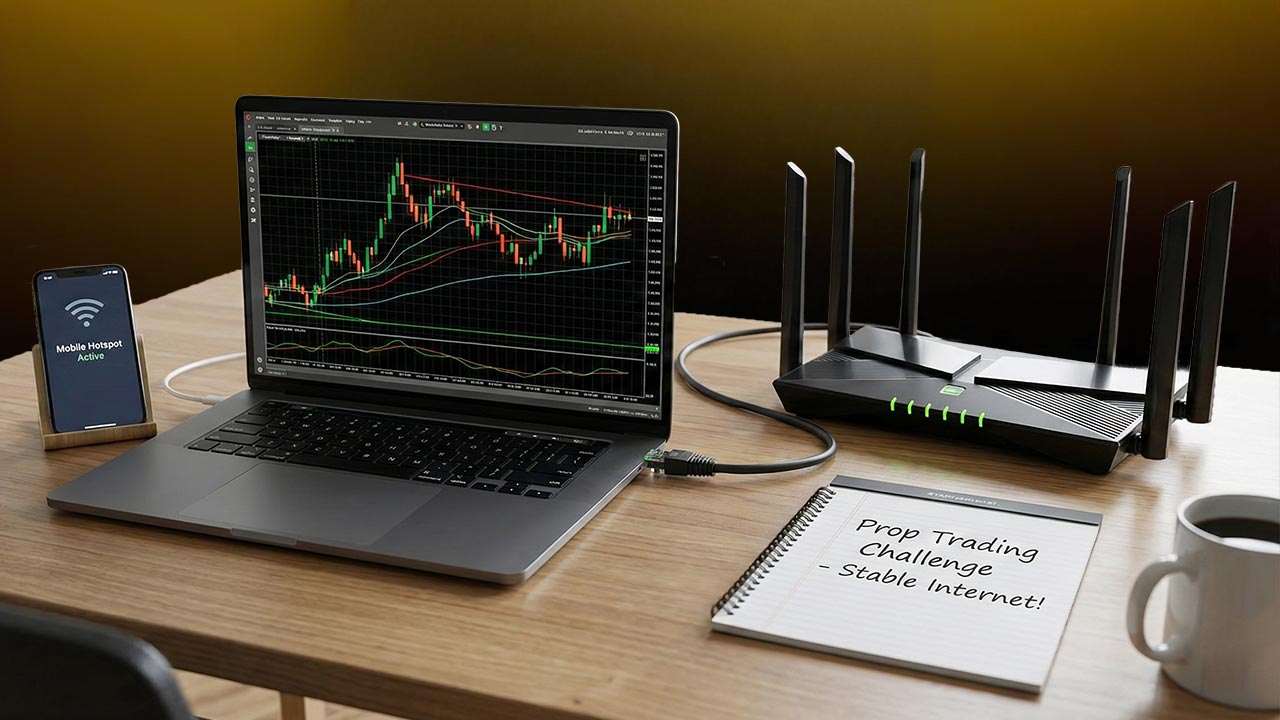
Use a wired connection if possible
Ethernet connections are significantly more stable than Wi-Fi. If you trade from a desktop or laptop, this is one of the simplest upgrades you can make during a prop challenge.
Restart your router properly
Follow this exact order:
Close cTrader completely
Power off your router and modem
Wait 30 seconds
Turn them back on
Wait for full internet stability
Reopen cTrader
This clears temporary routing issues that often disrupt trading platforms.
Disable Wi-Fi power saving
Many laptops automatically reduce Wi-Fi performance to save power, causing intermittent disconnections that affect cTrader connectivity.
Make sure your wireless adapter is set to maximum performance, especially while plugged in.
Test with a mobile hotspot
If cTrader runs smoothly on a hotspot, your home internet or router is the problem—not the platform.
Fix 2: Check cTrader server selection and login configuration
Some cTrader connectivity issues are caused by logging into the wrong environment or server.
Confirm the correct server
Brokers often run multiple cTrader servers (Live, Demo, Challenge environments). Logging into the wrong one can result in:
Endless connection loops
Missing price feeds
Order execution failures
Always double-check the server name provided by Pipstone Capital.
Avoid switching accounts too quickly
If you trade multiple accounts (personal + challenge), cTrader can occasionally cache credentials incorrectly.
Best practice:
Log out fully
Close the platform
Reopen cTrader before logging into another account
Fix 3: Update and clean your cTrader platform
Outdated or overloaded platforms often cause cTrader connectivity problems that feel like internet issues but aren’t.
Keep cTrader updated
Always use the latest version of:
cTrader Desktop
cTrader Mobile
Your browser (for cTrader Web)
Updates often include stability improvements and bug fixes.
Clear cache on mobile devices
If charts freeze or prices stop updating on mobile:
Force close the app
Clear cache
Restart your device
Log back in
Mobile traders experiencing repeated disconnects should also optimize their setup using best cTrader app settings on Mobile, which covers performance, stability, and layout settings that reduce mobile-related cTrader connectivity issues.
Reduce platform load
Heavy chart templates, excessive indicators, or multiple workspaces can overload your device and mimic connectivity issues.
For prop challenges:
Use a clean workspace
Limit indicators to essentials
Close unused charts
Fix 4: VPN and firewall conflicts
When you run automated strategies, scripts, or copy systems, unstable VPN routing can quietly disrupt execution without obvious errors, leading to missed actions, delayed logic, or partial execution during active sessions.
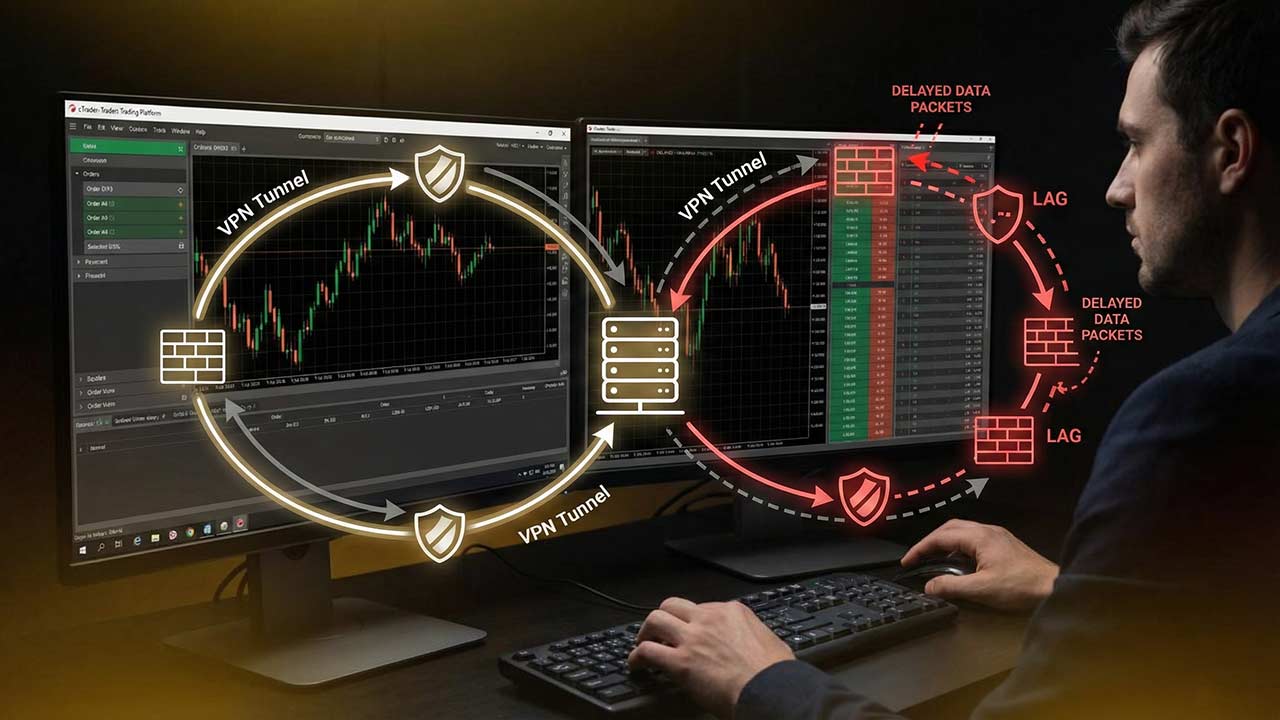
VPNs are a frequent hidden cause of cTrader connectivity issues, and traders who rely on bots or copy trading should ensure their automation is structured with connection stability in mind, as outlined in ultimate cTrader cBot strategy to Automate prop trading.
Why VPNs can cause problems
Increased latency
Packet loss
Unstable routing
Broker security flags
If you don’t need a VPN, disable it and test cTrader again. Many traders see instant improvement.
If you must use a VPN:
Choose a paid, stable provider
Select a server close to your broker’s region
Avoid free VPN services
Also ensure your firewall or antivirus software is not blocking cTrader’s outbound connections.
Fix 5: Time sync and system security checks
Incorrect system time can interfere with secure trading sessions and cause unexpected disconnections.
Sync your system time
Enable automatic date and time syncing on your device.
Check firewall permissions
Make sure cTrader is listed as an allowed application and not restricted by security software.
Fix 6: Symbol-specific price feed issues
Sometimes cTrader is connected, but specific symbols stop updating.
This usually happens when:
Markets are closed
Symbols are temporarily unavailable
Instrument names change
The account doesn’t have access to that symbol
If only one chart is affected, refresh the watchlist or re-add the symbol.
What to do during a confirmed server-side cTrader connectivity issue
If the issue is clearly broker-side:
Stop placing new trades
Avoid repeatedly clicking order buttons
Take screenshots of error messages and timestamps
Check open positions (SL/TP usually remain server-side)
Try cTrader Web or mobile as backup
Contact support with clear details
Documenting the issue is important in a prop challenge environment. For a broader framework on staying compliant and composed when technical issues appear mid-evaluation, traders can also review how to pass a forex Prop Firm Challenge.
How Pipstone Capital traders can prevent cTrader connectivity issues

Preparation is key during a prop challenge.
Best practices:
Keep a mobile hotspot ready
Use a lightweight trading setup
Always place stop-loss orders
Avoid platform changes during the challenge
Don’t install new software mid-evaluation
For a deeper look at built-in protections such as server-side stop losses, position safeguards, and execution controls, see risk management tools in cTrader for funded account Challenges.
Quick cTrader connectivity checklist (save this)
When cTrader disconnects:
Check internet stability
Switch networks
Restart cTrader
Confirm correct server
Disable VPN
Try cTrader Web or mobile
Document and contact support if needed
Final thoughts
cTrader connectivity issues are frustrating, but they’re rarely random. In most cases, the problem is either local network instability, platform configuration, or temporary server-side interruptions. By understanding the root cause and preparing properly, Pipstone Capital traders can avoid unnecessary stress during prop challenges.
Stable execution, calm decision-making, and preparation are all part of professional trading, and that includes managing your platform connection just as carefully as your risk
FAQ: cTrader Connectivity in Prop Challenges
Why does cTrader disconnect during high volatility?
High volatility increases data flow. If your internet or device is unstable, cTrader connectivity issues become more noticeable during news or session opens.
Can cTrader connectivity issues affect my prop challenge results?
Yes. Missed executions or delayed exits can indirectly increase drawdown or emotional errors, which is why preparation matters.
Is cTrader Web more stable than desktop?
It depends. cTrader Web can bypass local app issues, making it a useful backup during connectivity problems.
Does Pipstone Capital recommend a VPS?
A VPS isn’t required, but it can improve stability for traders with unreliable local internet or those running automated strategies.



cTrader Connectivity Issues in Prop Challenges and How to Fix Them
cTrader is one of the most stable and professional trading platforms available today. That’s one of the main reasons prop traders prefer it during evaluation and funded stages. But even with a solid platform, cTrader connectivity issues can still happen, especially during high-impact sessions or when trading under prop challenge conditions.
For traders attempting a Pipstone Capital challenge, platform stability isn’t just about convenience. A short disconnection can mean missed entries, delayed exits, or unnecessary drawdown pressure. Understanding why cTrader connectivity problems occur and how to fix them quickly can make a real difference in your challenge outcome.
This guide explains the most common cTrader connectivity issues in prop challenges, how to diagnose the real cause, and the exact steps you can take to prevent them going forward.
What cTrader connectivity issues look like during a prop challenge
Not all cTrader connectivity problems look like a full platform outage. In many cases, the connection is only partially broken, which makes it more dangerous for prop traders.
Common signs of cTrader connectivity issues include:
Charts stop updating while the platform remains open
Prices lag behind real market movement
“Disconnected” or “Connecting…” messages appear repeatedly
Orders remain stuck on “Pending”
Failed order execution during volatile moments
Random logouts during an active session
Symbols showing “No prices” despite open markets
In a prop challenge environment, where drawdown rules, risk limits, and execution accuracy matter, these issues can create unnecessary pressure and mistakes.
These risks tend to increase around news releases and session opens, which is why market timing and symbol selection also matter during unstable conditions, as explained in best forex pairs to trade before Announcements.
Why cTrader connectivity issues matter more in prop challenges
For retail traders, a short disconnection is annoying. For prop traders, it can be costly.
During a Pipstone Capital challenge, traders must:
Follow strict drawdown limits
Execute trades precisely
Manage risk consistently
Avoid emotional decision-making
When cTrader connectivity becomes unstable, traders may panic, over-intervene manually, or miss exits they had planned in advance. This is why understanding and preparing for connectivity problems is part of professional prop trading.
Traders who want to strengthen their platform execution and challenge workflow should also review how to use cTrader for prop challenges, which breaks down platform usage, order handling, and execution best practices in a prop environment.
The three main causes of cTrader connectivity problems
Almost every cTrader connectivity issue falls into one of these three categories:
1. Internet or network instability
This is the most common cause. Even fast internet can be unstable enough to interrupt trading traffic.
2. Platform or device-level issues
Outdated software, overloaded devices, or corrupted cache can cause cTrader to freeze or desync.
If you’re unsure whether cTrader or another platform suits your trading style and challenge conditions, it’s worth comparing execution behavior in cTrader vs MT5 to understand where platform stability differences really come from.
3. Broker or server-side interruptions
Maintenance, price feed disruptions, or server overloads on the broker side.
The key is identifying which category you’re dealing with before trying random fixes.
Step 1: Determine whether the cTrader connectivity issue is local or server-side
Before changing any settings, confirm where the problem is coming from.
Quick checks you should always do first
Open several websites (not just Google) to confirm internet stability
Switch from Wi-Fi to a mobile hotspot
Try cTrader Web if you’re using the desktop app
Check your email or broker dashboard for maintenance notices
Ask other traders in the Pipstone Capital community if they’re experiencing issues
If multiple traders report the same issue at the same time, the cTrader connectivity problem is likely server-side.
Fix 1: Stabilize your internet connection (most common solution)
Internet instability causes more cTrader connectivity issues than any other factor.
Use a wired connection if possible
Ethernet connections are significantly more stable than Wi-Fi. If you trade from a desktop or laptop, this is one of the simplest upgrades you can make during a prop challenge.
Restart your router properly
Follow this exact order:
Close cTrader completely
Power off your router and modem
Wait 30 seconds
Turn them back on
Wait for full internet stability
Reopen cTrader
This clears temporary routing issues that often disrupt trading platforms.
Disable Wi-Fi power saving
Many laptops automatically reduce Wi-Fi performance to save power, causing intermittent disconnections that affect cTrader connectivity.
Make sure your wireless adapter is set to maximum performance, especially while plugged in.
Test with a mobile hotspot
If cTrader runs smoothly on a hotspot, your home internet or router is the problem—not the platform.
Fix 2: Check cTrader server selection and login configuration
Some cTrader connectivity issues are caused by logging into the wrong environment or server.
Confirm the correct server
Brokers often run multiple cTrader servers (Live, Demo, Challenge environments). Logging into the wrong one can result in:
Endless connection loops
Missing price feeds
Order execution failures
Always double-check the server name provided by Pipstone Capital.
Avoid switching accounts too quickly
If you trade multiple accounts (personal + challenge), cTrader can occasionally cache credentials incorrectly.
Best practice:
Log out fully
Close the platform
Reopen cTrader before logging into another account
Fix 3: Update and clean your cTrader platform
Outdated or overloaded platforms often cause cTrader connectivity problems that feel like internet issues but aren’t.
Keep cTrader updated
Always use the latest version of:
cTrader Desktop
cTrader Mobile
Your browser (for cTrader Web)
Updates often include stability improvements and bug fixes.
Clear cache on mobile devices
If charts freeze or prices stop updating on mobile:
Force close the app
Clear cache
Restart your device
Log back in
Mobile traders experiencing repeated disconnects should also optimize their setup using best cTrader app settings on Mobile, which covers performance, stability, and layout settings that reduce mobile-related cTrader connectivity issues.
Reduce platform load
Heavy chart templates, excessive indicators, or multiple workspaces can overload your device and mimic connectivity issues.
For prop challenges:
Use a clean workspace
Limit indicators to essentials
Close unused charts
Fix 4: VPN and firewall conflicts
When you run automated strategies, scripts, or copy systems, unstable VPN routing can quietly disrupt execution without obvious errors, leading to missed actions, delayed logic, or partial execution during active sessions.
VPNs are a frequent hidden cause of cTrader connectivity issues, and traders who rely on bots or copy trading should ensure their automation is structured with connection stability in mind, as outlined in ultimate cTrader cBot strategy to Automate prop trading.
Why VPNs can cause problems
Increased latency
Packet loss
Unstable routing
Broker security flags
If you don’t need a VPN, disable it and test cTrader again. Many traders see instant improvement.
If you must use a VPN:
Choose a paid, stable provider
Select a server close to your broker’s region
Avoid free VPN services
Also ensure your firewall or antivirus software is not blocking cTrader’s outbound connections.
Fix 5: Time sync and system security checks
Incorrect system time can interfere with secure trading sessions and cause unexpected disconnections.
Sync your system time
Enable automatic date and time syncing on your device.
Check firewall permissions
Make sure cTrader is listed as an allowed application and not restricted by security software.
Fix 6: Symbol-specific price feed issues
Sometimes cTrader is connected, but specific symbols stop updating.
This usually happens when:
Markets are closed
Symbols are temporarily unavailable
Instrument names change
The account doesn’t have access to that symbol
If only one chart is affected, refresh the watchlist or re-add the symbol.
What to do during a confirmed server-side cTrader connectivity issue
If the issue is clearly broker-side:
Stop placing new trades
Avoid repeatedly clicking order buttons
Take screenshots of error messages and timestamps
Check open positions (SL/TP usually remain server-side)
Try cTrader Web or mobile as backup
Contact support with clear details
Documenting the issue is important in a prop challenge environment. For a broader framework on staying compliant and composed when technical issues appear mid-evaluation, traders can also review how to pass a forex Prop Firm Challenge.
How Pipstone Capital traders can prevent cTrader connectivity issues
Preparation is key during a prop challenge.
Best practices:
Keep a mobile hotspot ready
Use a lightweight trading setup
Always place stop-loss orders
Avoid platform changes during the challenge
Don’t install new software mid-evaluation
For a deeper look at built-in protections such as server-side stop losses, position safeguards, and execution controls, see risk management tools in cTrader for funded account Challenges.
Quick cTrader connectivity checklist (save this)
When cTrader disconnects:
Check internet stability
Switch networks
Restart cTrader
Confirm correct server
Disable VPN
Try cTrader Web or mobile
Document and contact support if needed
Final thoughts
cTrader connectivity issues are frustrating, but they’re rarely random. In most cases, the problem is either local network instability, platform configuration, or temporary server-side interruptions. By understanding the root cause and preparing properly, Pipstone Capital traders can avoid unnecessary stress during prop challenges.
Stable execution, calm decision-making, and preparation are all part of professional trading, and that includes managing your platform connection just as carefully as your risk
FAQ: cTrader Connectivity in Prop Challenges
Why does cTrader disconnect during high volatility?
High volatility increases data flow. If your internet or device is unstable, cTrader connectivity issues become more noticeable during news or session opens.
Can cTrader connectivity issues affect my prop challenge results?
Yes. Missed executions or delayed exits can indirectly increase drawdown or emotional errors, which is why preparation matters.
Is cTrader Web more stable than desktop?
It depends. cTrader Web can bypass local app issues, making it a useful backup during connectivity problems.
Does Pipstone Capital recommend a VPS?
A VPS isn’t required, but it can improve stability for traders with unreliable local internet or those running automated strategies.
