


Best cTrader App Settings for Prop Firm Traders on Mobile
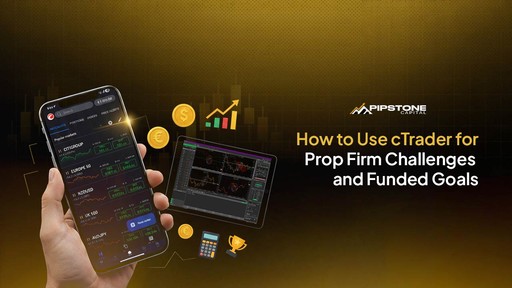
The cTrader app is one of the most powerful mobile trading platforms for forex and prop firm traders. To pass a challenge or manage a funded account, you need the best cTrader app settings that enhance control, precision, and risk management.
This guide walks you through a complete optimization setup, ensuring your cTrader app works perfectly for your prop trading needs.
1. Account & Time Settings in the cTrader App
Set Timezone: In your cTrader app, go to Settings → Settings and match your timezone (or the prop firm’s server time) to prevent timing mistakes.
Rename Accounts: Label your trading account (e.g., Challenge Account – Firm X) to avoid mixing up live and demo profiles.
Enable Notifications: Activate push alerts in the cTrader app for price movements, margin calls, and account updates. This helps you stay compliant when trading with the best cTrader prop firms with low spreads.
2. Quick Trade Configuration for the cTrader App
Accuracy is everything when trading prop challenges on the cTrader app. Go to Settings → Quick Trade:
Select Single Tap with Confirmation to minimize accidental trades.
Define default Stop-Loss (SL) and Take-Profit (TP) values based on your risk plan.
Adjust Market Range tolerance to prevent unwanted slippage.
This configuration ensures every trade on your cTrader app respects your prop firm’s drawdown and risk limits.
3. Charting & Visual Setup on the cTrader App
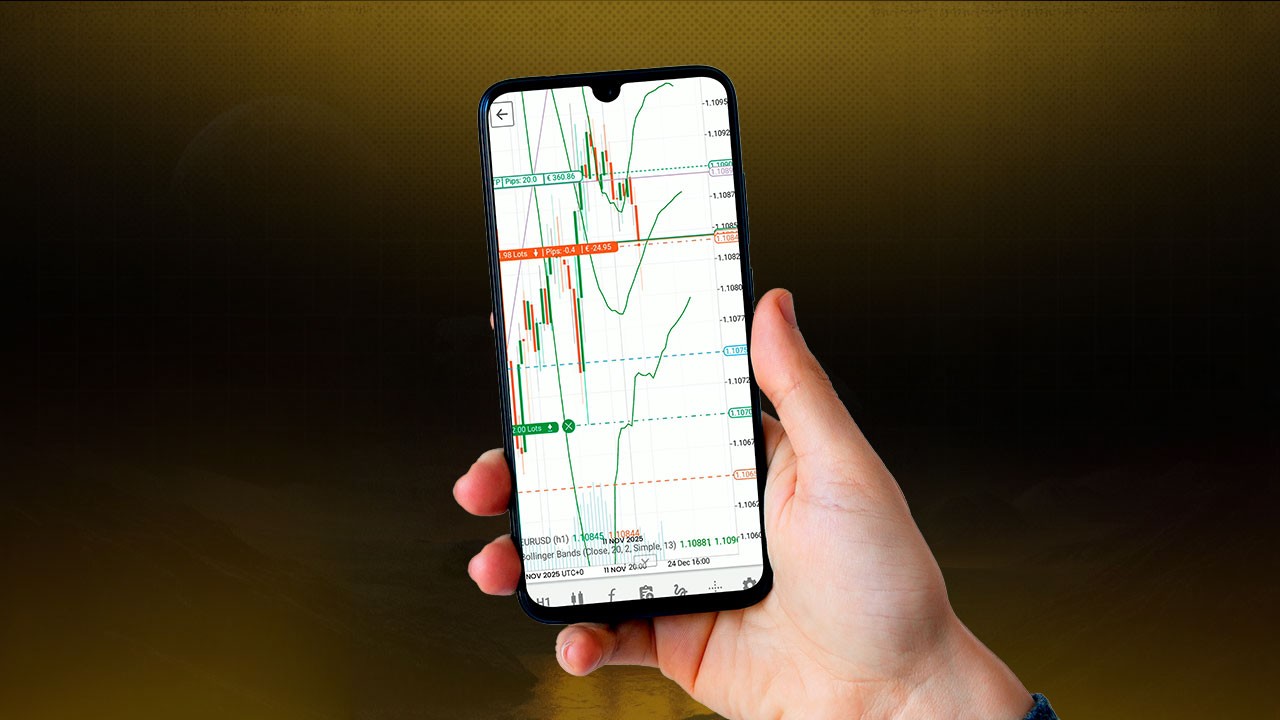
To make fast yet safe decisions, customize your chart interface on the cTrader app:
Set contrasting colors for entries, stop-loss, and take-profit lines.
Use dark mode for better clarity during long sessions.
Keep your Watchlist focused on a few key pairs.
Enable Status Panel to monitor balance, equity, and margin levels.
Add Alerts for price levels or equity thresholds, this automates part of your risk control.
4. Risk Management Setup in the cTrader App
Prop firms impose strict risk limits. Use your cTrader app to stay compliant:
Create equity alerts when your account drops a set percentage (e.g., 5% from peak).
Maintain consistent position sizes—1–2% risk per trade.
Avoid correlated trades and limit simultaneous open positions.
Always monitor live margin and equity on your cTrader app dashboard.
Keep a daily trading journal to track performance and identify patterns.
For a structured approach to risk and drawdown control, please read Risk Management in Forex prop Trading.

5. Connectivity & Reliability for the cTrader App
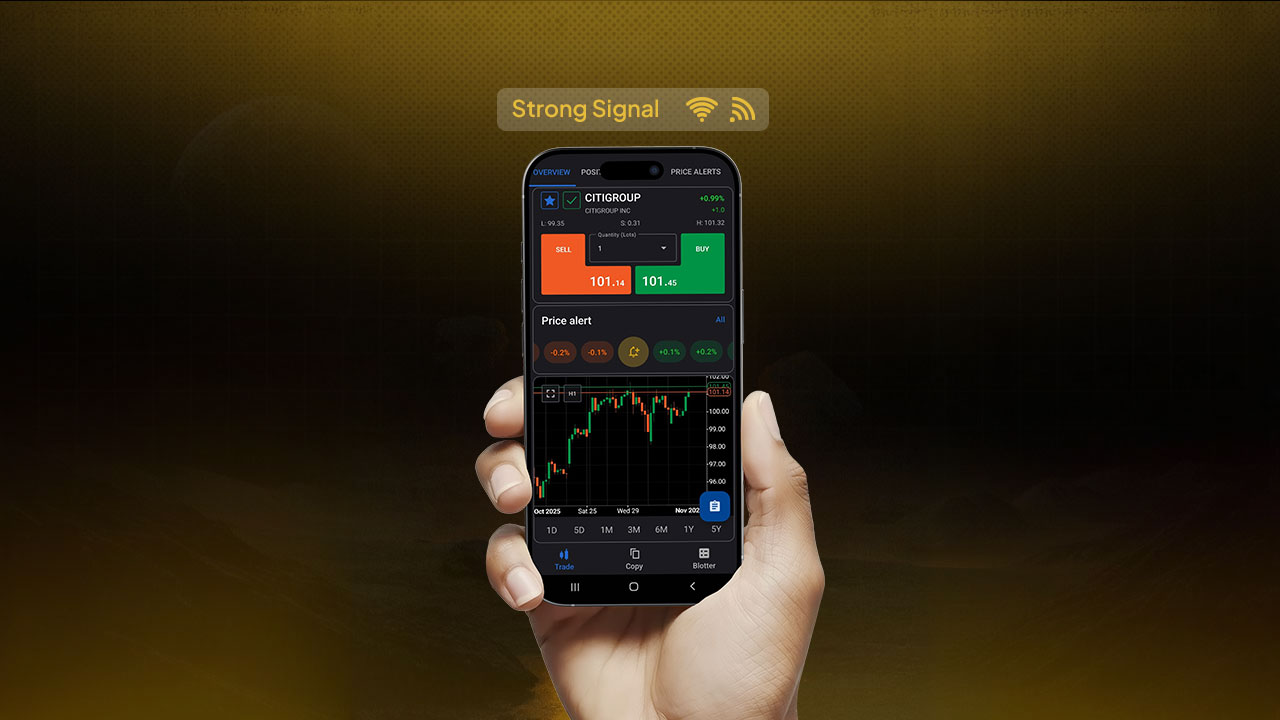
Mobile reliability is key for prop traders using the cTrader app:
Ensure stable Wi-Fi and a mobile data backup connection.
Keep your cTrader app updated for the latest security and performance patches.
Avoid trading major news events from mobile to reduce slippage.
Use Do Not Disturb mode to block unrelated notifications.
If you haven’t yet installed it, get the latest cTrader app download for your Android or iOS device - or follow our guide on cTrader Android for funded accounts.
6. Example cTrader App Setup for Prop Challenges
Setting | Recommended Option | Why |
Timezone | Local or server | Prevents time confusion |
Quick Trade | Single Tap + Confirm | Avoids mis-clicks |
Default SL/TP | 20 pip SL / 40 pip TP | Enforces discipline |
Watchlist | 4–6 core pairs | Keeps focus |
Alerts | Price & equity drops | Improves awareness |
Chart Colors | High contrast | Enhances clarity |
Status Panel | Enabled | Live risk overview |
Connectivity | WiFi + Mobile backup | Ensures stability |
To better understand how leverage impacts this setup, see Margin vs Leverage: What Traders Should Know for a clear breakdown.
7. Prop Firm Strategy Integration Using the cTrader App
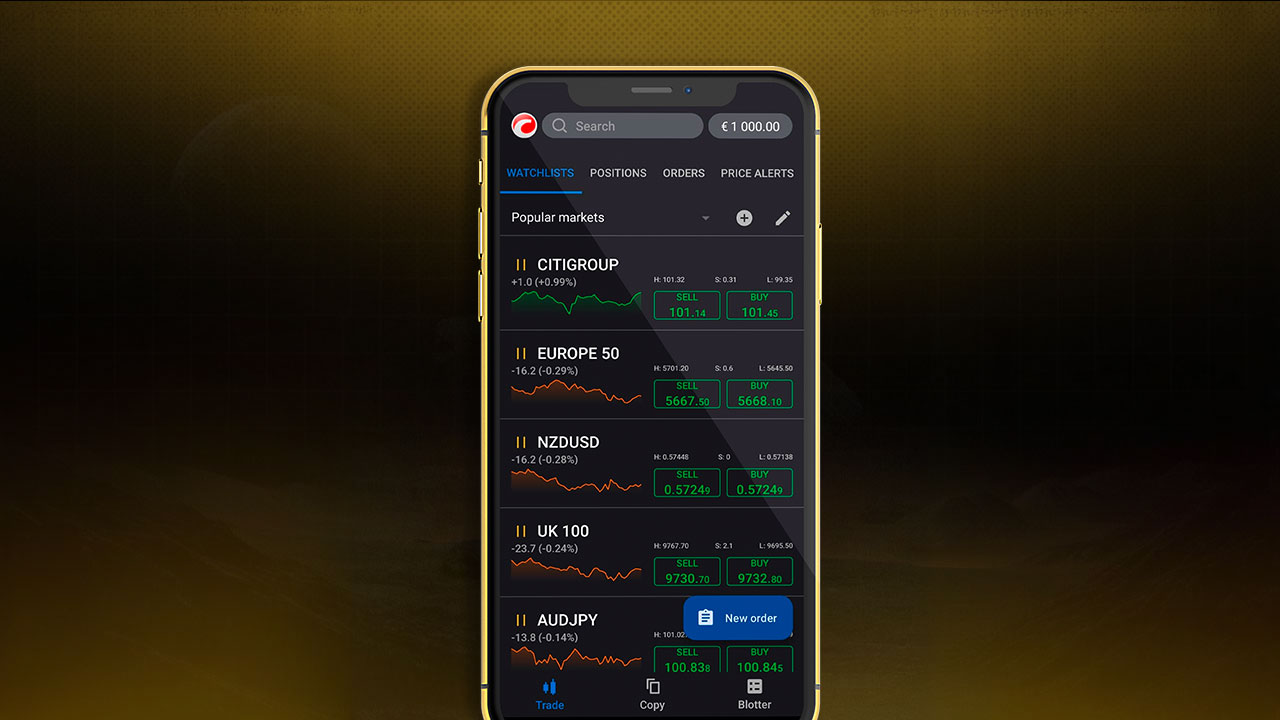
Maximize your cTrader app for prop firm success:
Follow firm-specific drawdown and daily loss limits.
Avoid over-leveraging or correlated pairs.
Implement a daily stop rule (e.g., stop trading at -2%).
Review all trades daily inside the cTrader app’s history section.
Journal consistent profits instead of chasing large wins.
For a deeper understanding of how to use cTrader to win funded account challenges, check out Pipstone Capital’s blog.
Conclusion
Use the cTrader app as your steady companion for day-to-day trading and risk management, especially if you’re in the $5,000 funded account challenge with Pipstone Capital, a forex prop firm that rewards consistency and discipline.
The mobile platform lets you react fast to market shifts, set instant alerts, and manage positions confidently even when you’re away from your desk. Pair it with Pipstone’s desktop version for full chart analysis and trade planning so every move you make is deliberate and within challenge rules.
The cTrader app keeps you connected, calm, and focused on hitting profit targets without breaching drawdowns, helping you build trust and progress toward higher funding tiers.
FAQ: About the cTrader App
What is the cTrader app?
The cTrader app is a mobile trading platform for forex and CFD traders, offering advanced order execution, charting tools, and analytics.
How can I get the cTrader app download?
You can get the official cTrader app download from the cTrader website or your phone’s app store.
Why should prop firm traders use the cTrader app?
It’s reliable, transparent, and provides fast execution which is perfect for traders under strict prop firm rules.
Does the cTrader app allow risk management tools?
Yes. You can set stop-loss, take-profit, and margin alerts directly in the cTrader app to stay compliant with trading limits.
Is the cTrader app suitable for beginners?
Yes. It’s intuitive and supports both manual and algorithmic strategies, making it ideal for traders at any level.



Best cTrader App Settings for Prop Firm Traders on Mobile
The cTrader app is one of the most powerful mobile trading platforms for forex and prop firm traders. To pass a challenge or manage a funded account, you need the best cTrader app settings that enhance control, precision, and risk management.
This guide walks you through a complete optimization setup, ensuring your cTrader app works perfectly for your prop trading needs.
1. Account & Time Settings in the cTrader App
Set Timezone: In your cTrader app, go to Settings → Settings and match your timezone (or the prop firm’s server time) to prevent timing mistakes.
Rename Accounts: Label your trading account (e.g., Challenge Account – Firm X) to avoid mixing up live and demo profiles.
Enable Notifications: Activate push alerts in the cTrader app for price movements, margin calls, and account updates. This helps you stay compliant when trading with the best cTrader prop firms with low spreads.
2. Quick Trade Configuration for the cTrader App
Accuracy is everything when trading prop challenges on the cTrader app. Go to Settings → Quick Trade:
Select Single Tap with Confirmation to minimize accidental trades.
Define default Stop-Loss (SL) and Take-Profit (TP) values based on your risk plan.
Adjust Market Range tolerance to prevent unwanted slippage.
This configuration ensures every trade on your cTrader app respects your prop firm’s drawdown and risk limits.
3. Charting & Visual Setup on the cTrader App
To make fast yet safe decisions, customize your chart interface on the cTrader app:
Set contrasting colors for entries, stop-loss, and take-profit lines.
Use dark mode for better clarity during long sessions.
Keep your Watchlist focused on a few key pairs.
Enable Status Panel to monitor balance, equity, and margin levels.
Add Alerts for price levels or equity thresholds, this automates part of your risk control.
4. Risk Management Setup in the cTrader App
Prop firms impose strict risk limits. Use your cTrader app to stay compliant:
Create equity alerts when your account drops a set percentage (e.g., 5% from peak).
Maintain consistent position sizes—1–2% risk per trade.
Avoid correlated trades and limit simultaneous open positions.
Always monitor live margin and equity on your cTrader app dashboard.
Keep a daily trading journal to track performance and identify patterns.
For a structured approach to risk and drawdown control, please read Risk Management in Forex prop Trading.
5. Connectivity & Reliability for the cTrader App
Mobile reliability is key for prop traders using the cTrader app:
Ensure stable Wi-Fi and a mobile data backup connection.
Keep your cTrader app updated for the latest security and performance patches.
Avoid trading major news events from mobile to reduce slippage.
Use Do Not Disturb mode to block unrelated notifications.
If you haven’t yet installed it, get the latest cTrader app download for your Android or iOS device - or follow our guide on cTrader Android for funded accounts.
6. Example cTrader App Setup for Prop Challenges
Setting | Recommended Option | Why |
Timezone | Local or server | Prevents time confusion |
Quick Trade | Single Tap + Confirm | Avoids mis-clicks |
Default SL/TP | 20 pip SL / 40 pip TP | Enforces discipline |
Watchlist | 4–6 core pairs | Keeps focus |
Alerts | Price & equity drops | Improves awareness |
Chart Colors | High contrast | Enhances clarity |
Status Panel | Enabled | Live risk overview |
Connectivity | WiFi + Mobile backup | Ensures stability |
To better understand how leverage impacts this setup, see Margin vs Leverage: What Traders Should Know for a clear breakdown.
7. Prop Firm Strategy Integration Using the cTrader App
Maximize your cTrader app for prop firm success:
Follow firm-specific drawdown and daily loss limits.
Avoid over-leveraging or correlated pairs.
Implement a daily stop rule (e.g., stop trading at -2%).
Review all trades daily inside the cTrader app’s history section.
Journal consistent profits instead of chasing large wins.
For a deeper understanding of how to use cTrader to win funded account challenges, check out Pipstone Capital’s blog.
Conclusion
Use the cTrader app as your steady companion for day-to-day trading and risk management, especially if you’re in the $5,000 funded account challenge with Pipstone Capital, a forex prop firm that rewards consistency and discipline.
The mobile platform lets you react fast to market shifts, set instant alerts, and manage positions confidently even when you’re away from your desk. Pair it with Pipstone’s desktop version for full chart analysis and trade planning so every move you make is deliberate and within challenge rules.
The cTrader app keeps you connected, calm, and focused on hitting profit targets without breaching drawdowns, helping you build trust and progress toward higher funding tiers.
FAQ: About the cTrader App
What is the cTrader app?
The cTrader app is a mobile trading platform for forex and CFD traders, offering advanced order execution, charting tools, and analytics.
How can I get the cTrader app download?
You can get the official cTrader app download from the cTrader website or your phone’s app store.
Why should prop firm traders use the cTrader app?
It’s reliable, transparent, and provides fast execution which is perfect for traders under strict prop firm rules.
Does the cTrader app allow risk management tools?
Yes. You can set stop-loss, take-profit, and margin alerts directly in the cTrader app to stay compliant with trading limits.
Is the cTrader app suitable for beginners?
Yes. It’s intuitive and supports both manual and algorithmic strategies, making it ideal for traders at any level.
