


How to Download cTrader and Set It Up for Prop Firm Challenges

The cTrader app has become a favorite among traders joining prop firms like Pipstone Capital. It’s fast, transparent, and built for serious traders who want real-time order control, smooth execution, and detailed analytics, essential features when you’re trading for a funded account challenge.
Unlike older platforms, cTrader offers a clean interface, detachable charts, and quick order buttons that reduce mistakes during high-pressure trades. Whether you’re testing strategies or scaling a funded account, mastering the setup can give you an edge.
Step 1 – cTrader App Download and Installation

You can install cTrader across all major devices:
On Desktop
Download cTrader.
Choose between Windows or macOS.
Run the installer and follow on-screen instructions.
Log in using your cTrader ID or broker-provided credentials.
If you’re trading with Pipstone Capital and cTrader access is available, you’ll receive login details directly from the firm.
On Mobile
Search “cTrader app” on Google Play or App Store.
Tap Install.
Open the app and log in using your cTrader ID.
Allow notifications for trade executions and margin alerts.
Installing the cTrader app on both desktop and mobile lets you monitor open trades 24/7, which is a must for prop firm traders who need to keep track of positions, margin levels, and notifications at all times.
This dual setup ensures you never miss an update when trades move quickly, especially during key sessions or when managing strict drawdown limits in funded challenges.
Step 2 – Connecting Your Prop Firm Account
After completing the cTrader app download, the next step is linking your trading account:
Open the app and click “Add Account.”
Choose the broker or prop firm server you’re trading with.
Enter the credentials provided by your broker or prop firm.
Once logged in, your balance, leverage, and positions appear instantly.
Pipstone Capital has recently started supporting cTrader, allowing traders to connect directly to its proprietary server. Once connected, you’ll trade under the same funded challenge parameters, including profit targets, daily drawdown, and risk limits.
This integration makes it easier for traders to experience the full challenge environment without switching platforms or dealing with latency between systems. If you're still learning the platform basics, our guide on how to use cTrader walks you through the essential tools and shortcuts that can help you trade more confidently during evaluations.
Step 3 – Platform Setup for Prop Challenges

Before placing your first trade, configure cTrader for prop-style risk control:
Set Margin Alerts: Go to Settings → Notifications → Margin Call Alerts to avoid breaching rules.
Adjust Lot Size Templates: Pre-set your trade sizes to maintain consistency across evaluations.
Enable One-Click Trading: Reduces order execution delay, crucial during high-volatility news events.
Save Chart Layouts: Combine indicators like RSI + Moving Averages + Support/Resistance for instant setups.
Once you’ve customized these settings, take a few minutes to test how they work together. These small tweaks help keep your trading consistent and reduce costly mistakes during evaluations. For prop firm traders, consistency is everything—having alerts, templates, and charts tailored to your risk plan ensures each trade follows the same structure whether you’re trading demo, evaluation, or live funded accounts.
Step 4 – Testing on Demo Before the Funded Challenge

Prop traders often fail not because of strategy but due to poor platform familiarity. Spend at least a week on a cTrader demo account before starting your funded account challenge.
Simulate real spreads and execution speed.
Test stop-loss automation and partial close functions.
Review trade history in the “Analyze” tab to find patterns.
Taking this extra week to practice builds real confidence. You’ll understand how orders execute, how quickly spreads widen during news, and how your stops behave under pressure. By treating your demo sessions like real evaluations, you train discipline and reduce emotional mistakes that can cost a funded account early in the challenge.
Step 5 – Optimizing Your cTrader App for Performance

To ensure a smooth experience:
Keep your cTrader app updated to the latest version.
Avoid heavy chart templates on mobile to prevent lag.
Clear cache weekly (Settings → Storage → Clear Data).
Back up your custom indicators on cloud sync.
If you trade multiple prop challenges, you can easily switch accounts within the app without logging out — a huge time saver for active traders. This flexibility helps you manage different evaluations or live accounts efficiently and ensures all your settings, such as those from the Best cTrader App Settings guide, stay consistent across each profile.
Why Pipstone Capital Traders Prefer cTrader
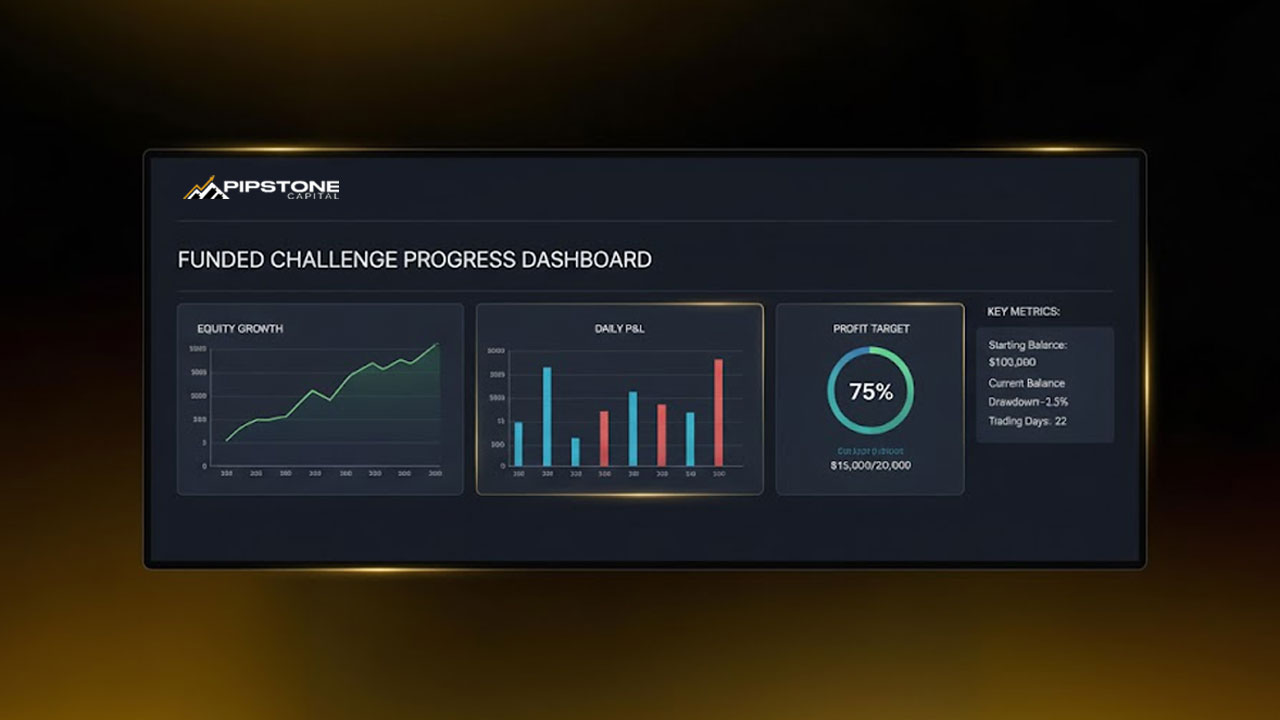
Prop firms like Pipstone Capital integrate cTrader because it promotes accountability and transparency, both critical in funded evaluations. You get:
Market-depth data for precise entries.
Real-time profit/loss tracking.
Trade analytics that help improve consistency.
By combining Pipstone’s structured challenges with cTrader’s precision tools, traders can scale accounts confidently and stay compliant with prop-firm rules.
Pipstone Capital stands out among other prop firms for its fast payouts, flexible scaling plans, and trader-friendly rules that reward consistency over volume. This approach gives traders a real shot at long-term growth, making it one of the most appealing choices for anyone seeking a reliable prop firm experience.

FAQs
Is cTrader app free to download?
Yes. The cTrader app download is completely free from official app stores or the cTrader website.
Can I use cTrader for multiple prop firms?
Absolutely. You can connect several broker accounts, including Pipstone Capital, and switch between them inside the app.
What’s the benefit of using cTrader over MT5?
It offers better transparency, faster execution, and modern analytics - key advantages for prop firm evaluations. Check out our detailed guide on cTrader vs MT5 to see which platform gives you the edge in prop trading.
Can I trade Pipstone’s $5,000 funded account challenge on cTrader?
Yes, once cTrader access is active. Pipstone Capital supports cTrader for all evaluation phases.



How to Download cTrader and Set It Up for Prop Firm Challenges
The cTrader app has become a favorite among traders joining prop firms like Pipstone Capital. It’s fast, transparent, and built for serious traders who want real-time order control, smooth execution, and detailed analytics, essential features when you’re trading for a funded account challenge.
Unlike older platforms, cTrader offers a clean interface, detachable charts, and quick order buttons that reduce mistakes during high-pressure trades. Whether you’re testing strategies or scaling a funded account, mastering the setup can give you an edge.
Step 1 – cTrader App Download and Installation
You can install cTrader across all major devices:
On Desktop
Download cTrader.
Choose between Windows or macOS.
Run the installer and follow on-screen instructions.
Log in using your cTrader ID or broker-provided credentials.
If you’re trading with Pipstone Capital and cTrader access is available, you’ll receive login details directly from the firm.
On Mobile
Search “cTrader app” on Google Play or App Store.
Tap Install.
Open the app and log in using your cTrader ID.
Allow notifications for trade executions and margin alerts.
Installing the cTrader app on both desktop and mobile lets you monitor open trades 24/7, which is a must for prop firm traders who need to keep track of positions, margin levels, and notifications at all times.
This dual setup ensures you never miss an update when trades move quickly, especially during key sessions or when managing strict drawdown limits in funded challenges.
Step 2 – Connecting Your Prop Firm Account
After completing the cTrader app download, the next step is linking your trading account:
Open the app and click “Add Account.”
Choose the broker or prop firm server you’re trading with.
Enter the credentials provided by your broker or prop firm.
Once logged in, your balance, leverage, and positions appear instantly.
Pipstone Capital has recently started supporting cTrader, allowing traders to connect directly to its proprietary server. Once connected, you’ll trade under the same funded challenge parameters, including profit targets, daily drawdown, and risk limits.
This integration makes it easier for traders to experience the full challenge environment without switching platforms or dealing with latency between systems. If you're still learning the platform basics, our guide on how to use cTrader walks you through the essential tools and shortcuts that can help you trade more confidently during evaluations.
Step 3 – Platform Setup for Prop Challenges
Before placing your first trade, configure cTrader for prop-style risk control:
Set Margin Alerts: Go to Settings → Notifications → Margin Call Alerts to avoid breaching rules.
Adjust Lot Size Templates: Pre-set your trade sizes to maintain consistency across evaluations.
Enable One-Click Trading: Reduces order execution delay, crucial during high-volatility news events.
Save Chart Layouts: Combine indicators like RSI + Moving Averages + Support/Resistance for instant setups.
Once you’ve customized these settings, take a few minutes to test how they work together. These small tweaks help keep your trading consistent and reduce costly mistakes during evaluations. For prop firm traders, consistency is everything—having alerts, templates, and charts tailored to your risk plan ensures each trade follows the same structure whether you’re trading demo, evaluation, or live funded accounts.
Step 4 – Testing on Demo Before the Funded Challenge
Prop traders often fail not because of strategy but due to poor platform familiarity. Spend at least a week on a cTrader demo account before starting your funded account challenge.
Simulate real spreads and execution speed.
Test stop-loss automation and partial close functions.
Review trade history in the “Analyze” tab to find patterns.
Taking this extra week to practice builds real confidence. You’ll understand how orders execute, how quickly spreads widen during news, and how your stops behave under pressure. By treating your demo sessions like real evaluations, you train discipline and reduce emotional mistakes that can cost a funded account early in the challenge.
Step 5 – Optimizing Your cTrader App for Performance
To ensure a smooth experience:
Keep your cTrader app updated to the latest version.
Avoid heavy chart templates on mobile to prevent lag.
Clear cache weekly (Settings → Storage → Clear Data).
Back up your custom indicators on cloud sync.
If you trade multiple prop challenges, you can easily switch accounts within the app without logging out — a huge time saver for active traders. This flexibility helps you manage different evaluations or live accounts efficiently and ensures all your settings, such as those from the Best cTrader App Settings guide, stay consistent across each profile.
Why Pipstone Capital Traders Prefer cTrader
Prop firms like Pipstone Capital integrate cTrader because it promotes accountability and transparency, both critical in funded evaluations. You get:
Market-depth data for precise entries.
Real-time profit/loss tracking.
Trade analytics that help improve consistency.
By combining Pipstone’s structured challenges with cTrader’s precision tools, traders can scale accounts confidently and stay compliant with prop-firm rules.
Pipstone Capital stands out among other prop firms for its fast payouts, flexible scaling plans, and trader-friendly rules that reward consistency over volume. This approach gives traders a real shot at long-term growth, making it one of the most appealing choices for anyone seeking a reliable prop firm experience.
FAQs
Is cTrader app free to download?
Yes. The cTrader app download is completely free from official app stores or the cTrader website.
Can I use cTrader for multiple prop firms?
Absolutely. You can connect several broker accounts, including Pipstone Capital, and switch between them inside the app.
What’s the benefit of using cTrader over MT5?
It offers better transparency, faster execution, and modern analytics - key advantages for prop firm evaluations. Check out our detailed guide on cTrader vs MT5 to see which platform gives you the edge in prop trading.
Can I trade Pipstone’s $5,000 funded account challenge on cTrader?
Yes, once cTrader access is active. Pipstone Capital supports cTrader for all evaluation phases.

How to Download cTrader and Set It Up for Prop Firm Challenges
The cTrader app has become a favorite among traders joining prop firms like Pipstone Capital. It’s fast, transparent, and built for serious traders who want real-time order control, smooth execution, and detailed analytics, essential features when you’re trading for a funded account challenge.
Unlike older platforms, cTrader offers a clean interface, detachable charts, and quick order buttons that reduce mistakes during high-pressure trades. Whether you’re testing strategies or scaling a funded account, mastering the setup can give you an edge.
Step 1 – cTrader App Download and Installation
You can install cTrader across all major devices:
On Desktop
Download cTrader.
Choose between Windows or macOS.
Run the installer and follow on-screen instructions.
Log in using your cTrader ID or broker-provided credentials.
If you’re trading with Pipstone Capital and cTrader access is available, you’ll receive login details directly from the firm.
On Mobile
Search “cTrader app” on Google Play or App Store.
Tap Install.
Open the app and log in using your cTrader ID.
Allow notifications for trade executions and margin alerts.
Installing the cTrader app on both desktop and mobile lets you monitor open trades 24/7, which is a must for prop firm traders who need to keep track of positions, margin levels, and notifications at all times.
This dual setup ensures you never miss an update when trades move quickly, especially during key sessions or when managing strict drawdown limits in funded challenges.
Step 2 – Connecting Your Prop Firm Account
After completing the cTrader app download, the next step is linking your trading account:
Open the app and click “Add Account.”
Choose the broker or prop firm server you’re trading with.
Enter the credentials provided by your broker or prop firm.
Once logged in, your balance, leverage, and positions appear instantly.
Pipstone Capital has recently started supporting cTrader, allowing traders to connect directly to its proprietary server. Once connected, you’ll trade under the same funded challenge parameters, including profit targets, daily drawdown, and risk limits.
This integration makes it easier for traders to experience the full challenge environment without switching platforms or dealing with latency between systems. If you're still learning the platform basics, our guide on how to use cTrader walks you through the essential tools and shortcuts that can help you trade more confidently during evaluations.
Step 3 – Platform Setup for Prop Challenges
Before placing your first trade, configure cTrader for prop-style risk control:
Set Margin Alerts: Go to Settings → Notifications → Margin Call Alerts to avoid breaching rules.
Adjust Lot Size Templates: Pre-set your trade sizes to maintain consistency across evaluations.
Enable One-Click Trading: Reduces order execution delay, crucial during high-volatility news events.
Save Chart Layouts: Combine indicators like RSI + Moving Averages + Support/Resistance for instant setups.
Once you’ve customized these settings, take a few minutes to test how they work together. These small tweaks help keep your trading consistent and reduce costly mistakes during evaluations. For prop firm traders, consistency is everything—having alerts, templates, and charts tailored to your risk plan ensures each trade follows the same structure whether you’re trading demo, evaluation, or live funded accounts.
Step 4 – Testing on Demo Before the Funded Challenge
Prop traders often fail not because of strategy but due to poor platform familiarity. Spend at least a week on a cTrader demo account before starting your funded account challenge.
Simulate real spreads and execution speed.
Test stop-loss automation and partial close functions.
Review trade history in the “Analyze” tab to find patterns.
Taking this extra week to practice builds real confidence. You’ll understand how orders execute, how quickly spreads widen during news, and how your stops behave under pressure. By treating your demo sessions like real evaluations, you train discipline and reduce emotional mistakes that can cost a funded account early in the challenge.
Step 5 – Optimizing Your cTrader App for Performance
To ensure a smooth experience:
Keep your cTrader app updated to the latest version.
Avoid heavy chart templates on mobile to prevent lag.
Clear cache weekly (Settings → Storage → Clear Data).
Back up your custom indicators on cloud sync.
If you trade multiple prop challenges, you can easily switch accounts within the app without logging out — a huge time saver for active traders. This flexibility helps you manage different evaluations or live accounts efficiently and ensures all your settings, such as those from the Best cTrader App Settings guide, stay consistent across each profile.
Why Pipstone Capital Traders Prefer cTrader
Prop firms like Pipstone Capital integrate cTrader because it promotes accountability and transparency, both critical in funded evaluations. You get:
Market-depth data for precise entries.
Real-time profit/loss tracking.
Trade analytics that help improve consistency.
By combining Pipstone’s structured challenges with cTrader’s precision tools, traders can scale accounts confidently and stay compliant with prop-firm rules.
Pipstone Capital stands out among other prop firms for its fast payouts, flexible scaling plans, and trader-friendly rules that reward consistency over volume. This approach gives traders a real shot at long-term growth, making it one of the most appealing choices for anyone seeking a reliable prop firm experience.
FAQs
Is cTrader app free to download?
Yes. The cTrader app download is completely free from official app stores or the cTrader website.
Can I use cTrader for multiple prop firms?
Absolutely. You can connect several broker accounts, including Pipstone Capital, and switch between them inside the app.
What’s the benefit of using cTrader over MT5?
It offers better transparency, faster execution, and modern analytics - key advantages for prop firm evaluations. Check out our detailed guide on cTrader vs MT5 to see which platform gives you the edge in prop trading.
Can I trade Pipstone’s $5,000 funded account challenge on cTrader?
Yes, once cTrader access is active. Pipstone Capital supports cTrader for all evaluation phases.